
The Day My Screen Froze (And My Heart Sank)
If your laptop gets so hot it feels like it might melt, you are not alone. A sluggish, overheating computer slows down your work, ruins your productivity, and can even damage your hardware. I want to share some simple, real-world steps that I use to cool down machines and get their original speed back without spending a fortune.
Before I could even reach for the save button, the entire system went black and shut down completely. I touched the bottom of the machine, and it was so incredibly hot that it actually burned my legs. This unexpected blackout did not just cost me hours of hard work and typing.
Managing your hardware resources properly is just like managing a successful team; it requires the right tools and strategies. In fact, many professionals rely on 7 proven project management frameworks for software teams to maintain peak efficiency in both human and technical resources."
This is a daily reality for thousands of people who deal with overheating computers. The anxiety of losing unsaved data hangs over your head constantly, making it impossible to focus. People spend their hard-earned money on expensive machines, expecting top-tier speed and reliability.
Instead, they get a machine that randomly freezes during important Zoom meetings or stutters during simple web browsing. It feels incredibly unfair when your expensive device acts like a cheap, broken toy. This constant lag kills your productivity and destroys your creative flow in seconds.
You start wondering if your computer is infected with a virus, or if it is just getting too old to function. The truth is usually much simpler, yet completely ignored by most regular users. The invisible enemy destroying your mental peace is simply unmanaged heat trapping itself inside the chassis.
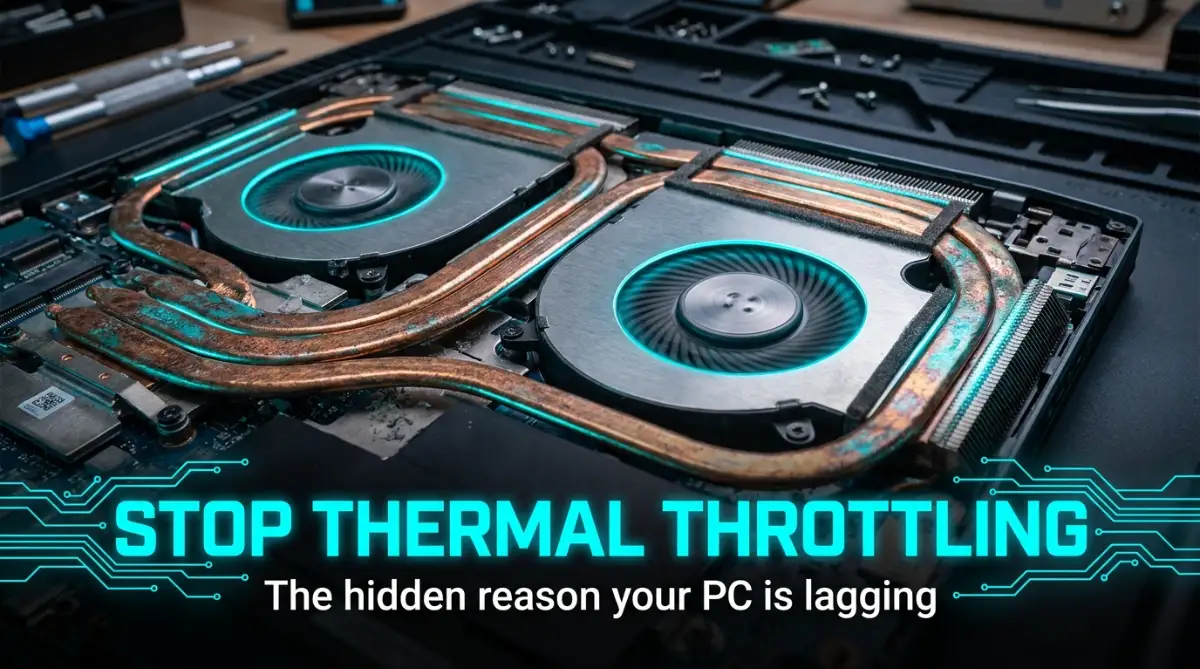
Your Quick Cooling Action Plan
- Change Your Surface: Never use your laptop on a bed or carpet. Always place it on a flat, hard desk or use a stand to keep air moving.
- Blow Away the Dust: Use a can of compressed air once every few months to clear out the vents.
- Adjust Power Settings: Switch your device to "Balanced" or "Battery Saver" mode when doing light work to lower CPU heat instantly.
- Keep It Open: Avoid running your laptop with the lid closed when connected to an external monitor to prevent screen damage from trapped heat.
The Hidden Enemy Inside Your Machine
To truly fix this frustrating problem, we need to understand what happens inside that thin metal box. Think of your laptop's processor as a highly trained marathon runner. When the runner is comfortable and breathing fresh air, they can run incredibly fast.
But if you force that same runner to sprint inside a hot sauna, they will collapse from exhaustion. This exact same process happens to your computer's main brain, which is the CPU. Every time you open an app, watch a video, or type a document, electrical power rushes through tiny circuits.
This massive flow of electricity naturally generates a tremendous amount of heat. If this trapped heat is not pushed out immediately, the internal temperature skyrockets in a matter of seconds. Your computer has built-in safety features to stop it from literally catching on fire.
Why Your System Suddenly Crawls
When the internal sensors detect dangerous heat levels, the system deliberately slows itself down. This frustrating self-defense mechanism is known as thermal throttling. By intentionally reducing its own speed, the processor generates less heat and saves its own life.
However, this safety feature is exactly why your game starts lagging or your video stops playing smoothly. Your laptop is basically choking on its own hot air and begging for a break. To get that snappy, lightning-fast performance back, you have to master the art of temperature control.
Myth vs Reality: The Cooling Truth
There are so many rumors floating around the internet about how to cool down a computer. Let's clear up some of the most common misunderstandings right now.
Myth: Keeping your computer in a cold air-conditioned room is enough to stop it from overheating.
Reality: Room temperature helps, but if your internal fans are clogged with dust, the cold air cannot reach the hot components.
Myth: You should put ice packs under your computer to cool it down fast.
Reality: This is incredibly dangerous because ice creates moisture and condensation. Water droplets will form inside the motherboard and instantly short-circuit your entire expensive machine.
Myth: A cooling pad will completely fix a heavily overheating laptop.
Reality: Cooling pads are great helpers, but they cannot fix dried-out thermal paste or a broken internal fan.
The Secret Blueprint to Icy Cold Performance
Now that we know exactly why our machines slow down, we can take real action. You do not need to be a professional computer engineer to fix these issues. By following a few highly practical steps, you can drastically drop your system temperatures today.
These methods are scientifically proven to improve airflow and bring back your machine's original speed. Let's explore the absolute best ways to rescue your computer from extreme heat.
Mastering Proper Laptop Placement
The surface where you place your computer changes everything about how it performs. Many of us love watching movies in bed with the laptop resting directly on our blankets. This is actually the worst possible thing you can do to your expensive device.
Soft surfaces like pillows, blankets, and couches completely block the air intake vents located on the bottom. When the vents are blocked, the tiny fans spin desperately but cannot pull in any fresh air. Always use your machine on a hard, flat surface like a wooden desk or a solid glass table.
If you want to instantly drop your laptop temperatures without spending a single dime, watching this quick airflow guide will completely change how you set up your desk.
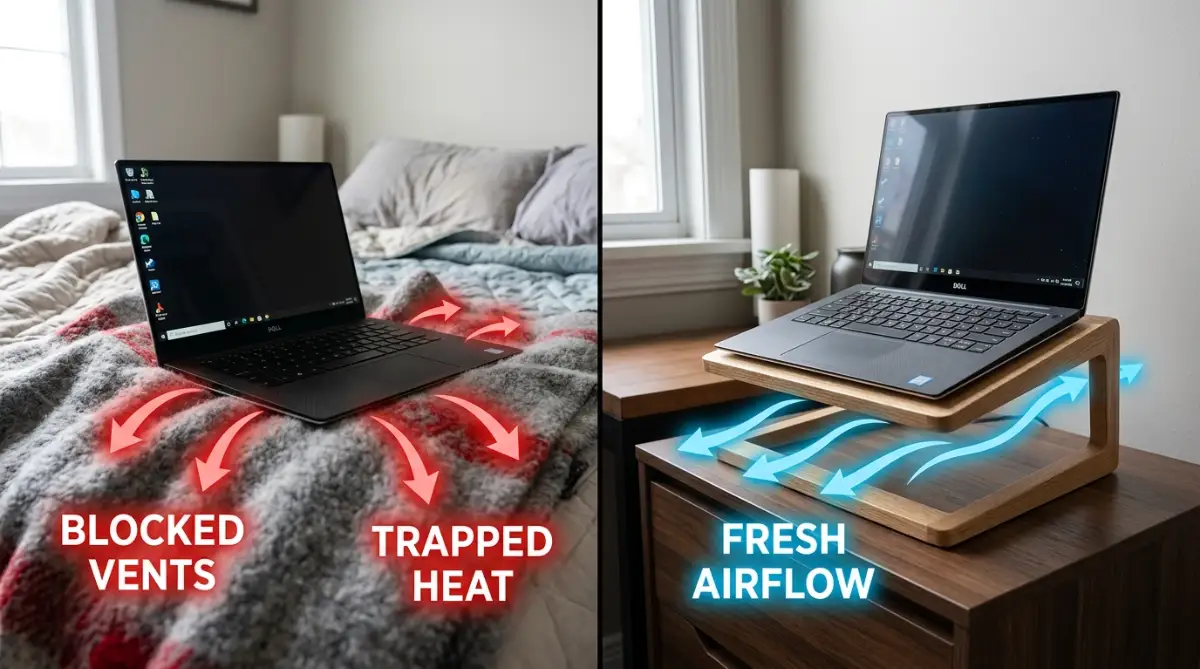
If you absolutely must use it on your bed, invest in a simple wooden lap desk. Elevating the back of the laptop even by just one inch can lower temperatures significantly. You can use a thick book or a small piece of wood to prop up the back edge, allowing massive amounts of cool air to enter.
The Magic of Removing Dust
Over time, your computer acts like a highly expensive vacuum cleaner, sucking in dust, pet hair, and dirt. This debris slowly builds up inside the copper cooling fins, creating a thick, ugly blanket. This dust blanket traps the heat perfectly, making the fans work twice as hard for zero results.
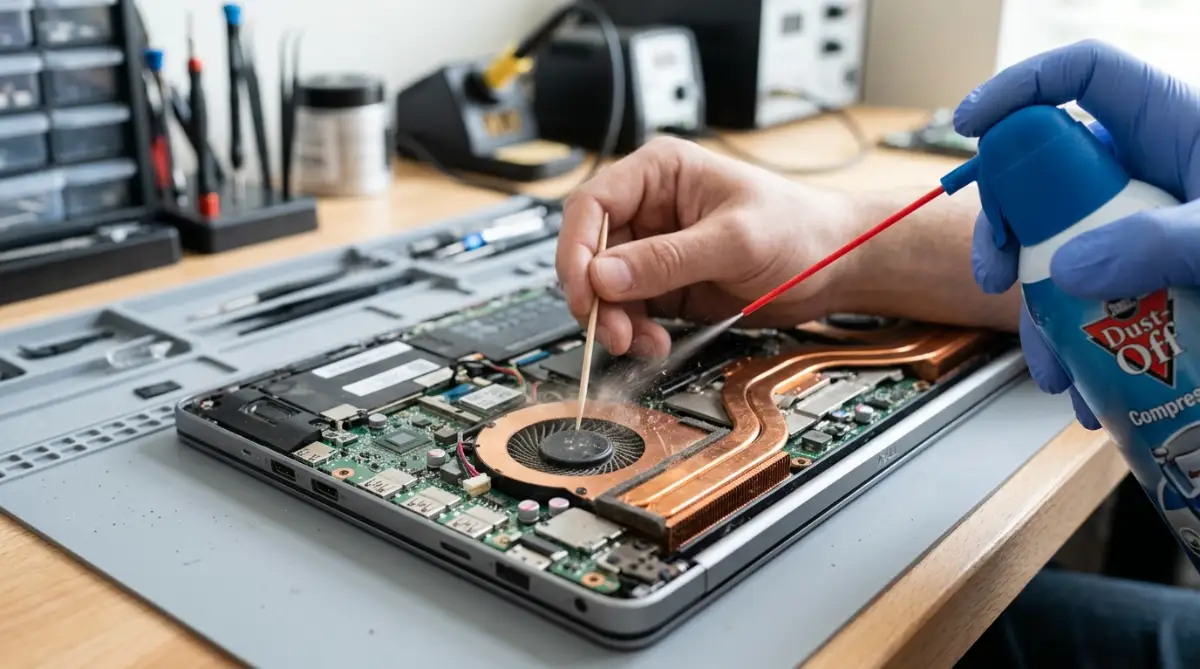
Cleaning out this dust is the single most effective way to restore your computer's speed. You do not need fancy tools to do this; a simple can of compressed air works wonders. Turn off the machine entirely and give short, gentle bursts of air into the side vents.
Here is a small secret from my own experience. I used to think blowing air straight into the fan vents with maximum force was a great idea, until I accidentally damaged a delicate fan bearing. Now, I always hold the fan blade gently in place with a soft toothpick before using the compressed air spray.
Understanding the Cooling Pad Debate
People always ask if buying an external cooling pad is actually worth the money. The answer depends heavily on how the bottom of your specific computer is built. If your machine has large air vents on the bottom cover, a cooling pad works like magic.
The large fans on the pad force fresh, cool air directly up into your system's intake vents. This constant supply of fresh air makes the internal fans' job much easier and quieter. However, if your computer has a solid bottom with no holes, a cooling pad will barely make a difference.
For solid-bottom devices, a simple passive stand that raises the screen to eye level is a much better choice. The elevation allows ambient room air to flow naturally around the metal chassis, cooling it down passively.
The Ultimate Comparison: Good Airflow vs Bad Airflow
Why Software Tweaks Matter Too
Physical cleaning is amazing, but your software habits also play a massive role in heat generation. If you have twenty different programs running silently in the background, your processor never gets to rest. Every single background app demands a small piece of electrical power, creating unnecessary warmth.
Open your system's task manager and take a good look at what is running right now. Close down startup apps that you never use, like old game launchers or unused chat applications. Reducing the software load is like taking heavy rocks out of our marathon runner's backpack.
Another amazing software trick is adjusting your main power settings when you do not need extreme speed. If you are just reading an article or typing a document, switch your power plan to "Battery Saver" or "Balanced". This simple click tells the processor to relax, instantly dropping the overall system temperature.
The Hidden World of Thermal Paste
Inside your computer, there is a tiny gap between the hot processor chip and the copper cooler. Microscopic pockets of air get trapped in this gap, and air is terrible at transferring heat. To fix this, manufacturers use a special silvery liquid called thermal paste to fill those tiny gaps.
Think of thermal paste like the special oil in a car engine that keeps everything running smoothly. Over time, this paste gets baked by extreme heat and turns into a dry, crusty powder. When the paste dries out, it completely stops transferring heat, causing your computer to overheat instantly.
If your laptop is a few years old and the fans are clean, dry paste is likely your biggest enemy. Replacing this paste requires opening the machine, which can be a fun project if you are careful. If you do not feel comfortable opening your device, any local repair shop can do it for a small fee.
How Extreme Heat Kills Your Battery
Most people only worry about their processor slowing down, but extreme heat destroys another expensive part. Your laptop battery is made of sensitive lithium-ion chemicals that absolutely hate hot temperatures. Exposing a battery to constant heat is like leaving a chocolate bar out in the summer sun.
When the internal temperature stays high for weeks, the battery slowly loses its ability to hold a charge. A battery that used to last eight hours might suddenly die in just two hours. By keeping your system well-ventilated, you are actually saving money by extending the life of your battery.
Never leave your device baking in a hot car during the summer afternoon. Always try to charge your device on a cool, hard surface where heat can escape easily. Small daily habits like this will save you from buying an expensive replacement battery later on.
Real-Life Scenarios: Why This Changes Everything
Let's look at how proper temperature control changes the daily lives of different types of users.
The Heavy Gamer:
When gamers ignore temperature warnings, their video games turn into a stuttering, unplayable mess. Frame rates drop drastically during intense action scenes because the graphics card is thermal throttling. By simply cleaning the vents and elevating the back, games become smooth, beautiful, and competitive again.
The Professional Video Editor:
Rendering a long 4K video pushes a processor to its absolute maximum limit for a long time. Without good airflow, a video that should take ten minutes to save might take an hour. Keeping the machine cold ensures the processor runs at peak speed until the heavy workload is completely finished.
The Everyday Student:
Even if you only use simple web browsers and document editors, heat control is incredibly important. A hot computer means loud, annoying fan noise that distracts you during online classes or studying. A cool computer runs completely silent, giving you the perfect peaceful environment to focus on your education.
Keeping an Eye on the Numbers
You do not have to guess if your machine is getting too hot anymore. There are plenty of free, lightweight programs that show you exactly how hot your components are running. Checking these numbers once a month is a great way to catch cooling problems before they become dangerous.
When your processor is resting and doing nothing, it should ideally sit in a comfortable, cool range. When you are doing heavy work, it is normal for the numbers to climb higher. However, if the numbers constantly stay near the absolute maximum limit, it is time to grab your compressed air.
Knowing your numbers turns you from a helpless victim into a smart, confident technology user. You will know exactly when your computer needs a little bit of maintenance and care. Treating your machine with respect guarantees it will serve you perfectly for a very long time.
Taking Your Cooling Strategy to the Next Level
Once you have mastered the basics of keeping your computer physically clean, it is time to explore professional techniques. Many people think they are stuck with the default settings that come directly from the factory. The truth is, manufacturers often configure systems to be completely silent, even if it means running extremely hot.
They know that average consumers complain about loud fan noises. However, as a smart user, you want performance and longevity over a completely silent room. Taking control of your hardware is much easier than it sounds, and it requires no physical tools.
Think of your computer as a high-performance sports car. You would not drive a sports car without checking the engine gauges and oil pressure. By taking control of the internal settings, you can completely transform how your system handles heavy workloads.
The Magic of Custom Fan Curves
Your computer has a built-in thermostat that tells the cooling fans exactly when to spin faster. By default, the fans wait until the processor is incredibly hot before they finally wake up. This delayed reaction allows a massive buildup of heat inside the metal chassis.
You can change this behavior by using free system monitoring software to create a custom fan curve. A fan curve is simply a graph that tells your fans to start spinning aggressively at much lower temperatures. For example, you can tell the fans to run at fifty percent speed as soon as you open a heavy application.
This proactive approach pushes the hot air out before it ever has a chance to build up. Your system will be a little bit louder, but the temperature drop will be absolutely massive. Managing your hardware resources properly is just like managing a successful team; it requires the right tools and strategies. In fact, many professionals rely on 7 proven project management frameworks for software teams to maintain peak efficiency in both human and technical resources.
Understanding Safe Voltage Reduction
Here is a secret that professional computer builders use to achieve incredibly low temperatures. It is a process called undervolting, and it is completely safe when done correctly. Every processor requires electrical voltage to function and process data.
Factory settings usually push way more electrical voltage into the processor than it actually needs. This extra, unnecessary electricity is immediately converted into pure heat. Undervolting simply means lowering the amount of power sent to the processor while keeping the exact same performance speed.
It is like telling a runner to use less energy while running at the exact same pace. Lower voltage means significantly less heat generation and a much longer battery lifespan. Understanding exactly how energy conversion creates excess heat is a fascinating scientific principle. You can see similar thermal behaviors in renewable energy technology, which you can learn about in this guide covering the 5 hidden secrets of solar inverters.
Quick Tool Guide for Safe Undervolting
The Closed-Lid Trap
Many remote workers love connecting their laptop to a large external monitor and closing the device lid. It makes the desk look incredibly clean and minimalistic. However, this is one of the worst things you can do for your internal temperatures.
Most modern notebooks use the small gaps between the keyboard keys to pull in cool air or release hot air. When you shut the lid, you completely block this massive ventilation area. The trapped hot air then bakes directly against your delicate LCD screen.
Over time, this intense trapped heat can actually cause permanent discoloration and damage to your display panel. If you must use an external monitor, always leave the laptop screen open at least a few inches. This allows the keyboard deck to breathe naturally and prevents a dangerous buildup of internal pressure.

The Dangerous Habits Ruining Your Expensive Device
Even smart technology users accidentally destroy their devices by following bad advice. I have seen incredibly expensive machines completely ruined by simple, easily avoidable mistakes. When we panic about a slow computer, we often try quick fixes that cause permanent hardware failure.
We need to treat these thin glass and metal devices with immense respect. They contain thousands of microscopic electrical pathways that are highly sensitive to sudden changes. Let's look at the absolute worst things you can do when trying to cool down your machine.
The Household Vacuum Cleaner Disaster
When people notice a thick layer of dust blocking their side vents, they immediately grab their household vacuum cleaner. They push the plastic vacuum hose directly against the delicate metal fins. This seems like a fast and easy way to clean the system, but it is actually a fatal mistake.
Household vacuum hoses generate a massive amount of invisible static electricity as dust rushes through the plastic tube. If that static charge jumps from the hose to your motherboard, your computer will die instantly. This microscopic shock literally fries the tiny electrical components in a fraction of a second.
According to advanced research on electrostatic discharge prevention in electronics, a human cannot even feel the static shock that is required to permanently destroy a modern microchip. Always stick to compressed air cans, which are specifically designed to be perfectly safe for sensitive internal hardware.
Ignoring the Grinding Noise of Death
Sometimes your cooling fan will start making a strange clicking, grinding, or rattling sound. Many people just put on their headphones, ignore the annoying sound, and continue working. This is a massive warning sign that you should never, ever ignore.
That strange noise means the tiny physical bearing inside the fan mechanism is shattering and falling apart. Eventually, the fan will stop spinning completely without giving you any further warnings. If the fan dies while you are working on a heavy project, the sudden temperature spike can melt surrounding plastic parts.
Fixing small hardware warnings early saves you from massive headaches later on. It is very similar to how ignoring small security flaws can eventually ruin an entire business website. Just like you need to understand the 7 hidden domain security features your business needs, you must pay attention to your physical hardware security.
The Cheap Charger Nightmare
You might wonder what your power charger has to do with internal temperatures. The answer is absolutely everything. When you lose your original factory charger, buying a cheap replacement online feels like a smart financial move.
However, cheap knock-off chargers do not regulate electrical voltage properly. They push unstable, "dirty" power directly into your battery cells and motherboard components. The system has to work incredibly hard to filter this messy electricity, generating massive amounts of unnecessary heat.
This constant electrical stress will cause your battery to swell up like a dangerous balloon. Always invest in an official, certified power adapter made specifically for your brand. Making the right investment in quality hardware is just as important as knowing the 7 hidden truths about shared vs vps hosting before you upgrade your digital assets.
A Workspace Designed for Survival
Your physical desk setup plays a massive role in how well your machine survives the daily grind. Pushing your computer right against a wall blocks the hot exhaust air from escaping properly. The hot air hits the wall, bounces directly back, and gets sucked right back into the machine.
Always leave at least six inches of empty space behind your exhaust vents. Keep loose papers, coffee cups, and thick books away from the sides of your computer. You want to create a clear, unobstructed wind tunnel for fresh air to flow continuously.
If you live in an extremely hot climate, placing a small desk fan pointing near your setup can work wonders. It pushes away the stagnant hot air surrounding the chassis and introduces fresh room-temperature air. Keeping your expensive equipment safe prevents you from constantly spending money on repairs, helping you avoid bad financial situations like those 5 hidden student loan traps you must avoid.
The Hidden Impact of Storage Drives
Most people only blame the main processor when things get too hot, but they forget about storage. Modern solid-state drives (SSDs) move data at incredibly fast speeds, which creates a lot of friction and warmth. If you are transferring massive video files for hours, your SSD can actually overheat.
If your laptop slows down while transferring big files, your storage drive might be getting too hot. I highly recommend buying a cheap thermal pad ($5 or less). Placing this tiny cooling pad over your SSD can drop its temperature by up to 15°C.
When an SSD gets too hot, it does the exact same thing as a processor; it intentionally slows down. Your file transfer that was moving instantly will suddenly crawl to an agonizingly slow pace. Keeping the entire internal chassis well-ventilated protects every single component, not just the main brain.
For professional businesses tracking digital performance, speed and efficiency are everything. Having a slow machine ruins your ability to analyze important business data effectively. For instance, you can never accurately track the 5 proven metrics to measure cac ltv if your work computer freezes every time you open a massive spreadsheet.
The Seasonal Temperature Shifts
Do not forget that your computer reacts differently depending on the actual season outside. During a freezing winter, your machine will naturally run much cooler and quieter. But when summer arrives, the ambient room temperature rises dramatically.
Your computer cannot cool itself down past the current temperature of the room it is sitting in. If your room is ninety degrees, the air being pulled into the fans is already hot. You might need to be more aggressive with your cooling strategies during the hot summer months.
Interestingly, weather and seasons affect all types of energy systems, both indoors and outdoors. If you use renewable energy at your home, you will notice similar seasonal efficiency changes. You can read more about dealing with seasonal tech shifts in this guide on how to winter proof your solar panels.
Wrapping Up Your Journey to Peak Performance
You now have a deep, professional understanding of exactly how your machine handles intense workloads. You are no longer just a regular user who panics when the screen freezes or the fans get loud. You now understand the science behind thermal throttling and how to defeat it completely.
By simply keeping your vents clean and giving the bottom of the device room to breathe, you win half the battle. Adding software tricks like adjusting fan curves and power plans gives you total mastery over your hardware. These small, simple daily habits will easily double the lifespan of your expensive device.
You will experience faster application loading times, smoother video playback, and completely lag-free typing. Most importantly, you will finally get your mental peace back during those long, stressful work sessions. Your computer should be your most reliable assistant, not a source of constant daily anxiety.
I remember opening up my first heavily overheating computer and being terrified I would break something. But once I cleaned out that thick layer of dust and felt the icy cold air flowing again, the performance boost felt like magic. I promise you, taking a few minutes today to elevate your device and clear those vents will completely change how you work forever.
Common Questions About Laptop Cooling Strategies
What is a normal temperature for my processor?
When you are just reading articles or typing, your processor should sit between 40 and 50 degrees Celsius. When you are doing heavy work like gaming or editing, jumping up to 80 or 85 degrees is completely normal and safe. However, if you constantly hit 95 degrees or higher, you need to clean your fans immediately.
Will a cooling pad damage my internal fans?
No, a high-quality cooling pad will not damage your internal fans at all. In fact, it pushes extra air into the chassis, making your internal fans work much less. Just make sure to buy a pad where the external fans align perfectly with your computer's bottom intake vents.
Should I leave my computer plugged in all day?
Leaving it plugged in while heavily working is actually great for performance because it gives the processor full power. However, constantly sitting at a 100% charge creates mild heat that can slowly degrade the battery cells over the years. Try to use your manufacturer's built-in software to limit the maximum battery charge to 80% if you keep it plugged in constantly.
Can software updates fix my overheating problem?
Yes, sometimes hardware manufacturers release specific BIOS updates that fix broken fan control settings. Always keep your main operating system and your manufacturer's support software fully updated. These silent updates often include small tweaks that make your system run much cooler in the background.
How often should I clean the internal dust?
If you work in a clean office environment, giving the side vents a quick spray of compressed air every three to four months is perfect. If you have extremely fluffy pets at home, you should probably do it every two months. Staying consistent with cleaning prevents the dust from hardening into an impossible-to-remove crust.
Disclaimer: This article is for informational and educational purposes only. Modifying your computer's hardware, opening the chassis, or changing advanced power settings carries an inherent risk and may void your manufacturer's warranty. Always consult with a certified technician before attempting any internal physical repairs. The author and publisher are not responsible for any data loss, hardware damage, or financial loss resulting from the application of the techniques mentioned in this guide.
![5 Shocking Truths About Megapixels [The Camera Trap Exposed]](https://vimex24.com/storage/uploads/blogs/1785554339_5-shocking-truths-about-megapixels-the-camera-trap-exposed.webp)