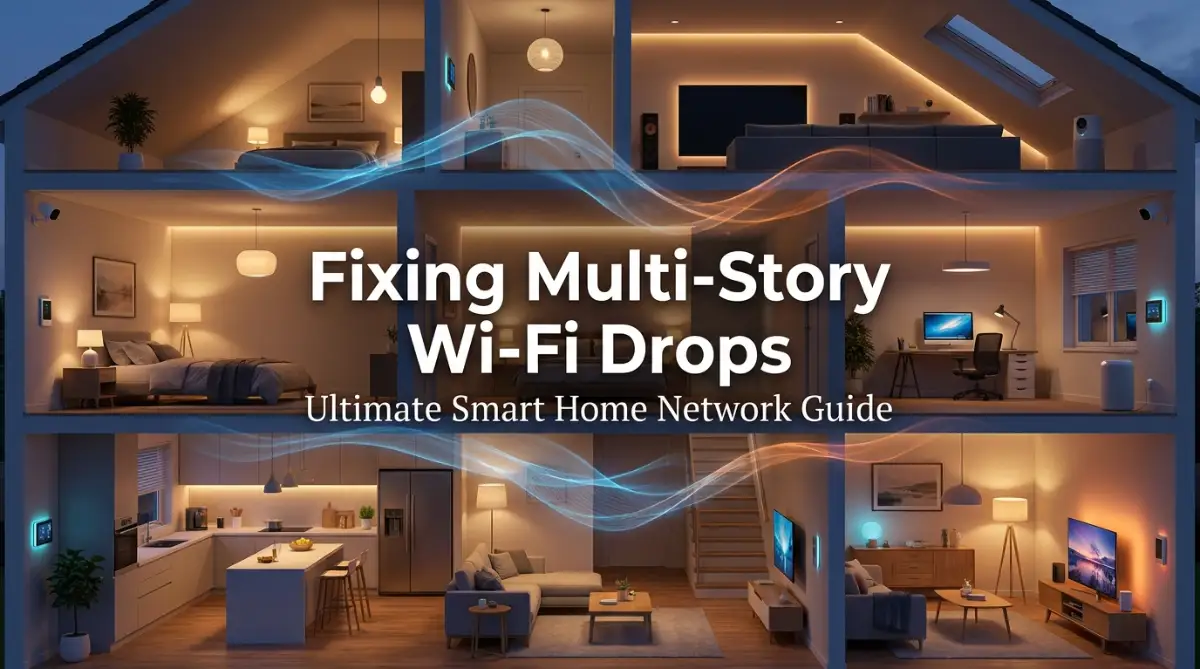
The Invisible Wall: My Own Battle with Smart Home Network Drops
If your smart home gadgets constantly drop their connection the moment you walk upstairs, you are not alone. It is incredibly frustrating to spend your hard-earned money on smart bulbs and security cameras only to watch them turn into useless plastic bricks because of poor Wi-Fi. I lived through this exact nightmare in my multi-story house, but I finally figured out how to fix the physical and digital blocks killing my signal—all without spending a fortune. Here is how you can do the same.
I spent hours restarting my router, hoping a simple power cycle would fix everything. But the moment I walked up the stairs, the signal dropped right back to zero. My devices were constantly fighting to stay connected to the internet. This frustrating pattern repeated day after day, turning my dream home into a daily tech nightmare.
If you are reading this, you are likely facing the exact same frustrating issue in your house. You might have smart bulbs that constantly flash, or security cameras that stop recording in the middle of the night. It is incredibly tiring to spend your hard-earned money on smart gadgets, only to have them lose connection when you need them most.
The mental toll of a failing home network is something people rarely talk about. You expect your home to be a place of comfort and relaxation. Instead, you end up feeling like an unpaid tech support worker in your own living space. Every disconnected device feels like a small failure, leaving you stressed and annoyed.
Fortunately, you do not have to live with these annoying connection issues forever. The problem is not necessarily your devices; it is how the signals travel through your home. By making a few smart adjustments, you can make your network stable and reliable again.
Let us look at why this happens and explore the exact steps to fix your connection drops once and for all.
📌 Quick Fix Cheat Sheet: Stop Your Smart Home Drops Today
If you are short on time, here are the absolute fastest ways to stabilize your home network right now:
- Stop vertical stacking: Never place your mesh nodes directly above one another. Arrange them in a diagonal zigzag pattern across floors.
- Split your Wi-Fi bands: Turn off band steering. Keep your phones on 5 GHz and put all your smart home gadgets on a separate 2.4 GHz network.
- Lock your Wi-Fi channel: Switch your router's 2.4 GHz channel from "Auto" to a fixed, clean channel (either 1, 6, or 11) to avoid neighborhood interference.
- Reserve static IPs: Use your router's admin panel to lock in permanent IP addresses for your main smart hubs and cameras.
Why Your Multi-Story House is a Natural Wi-Fi Killer
To fix your network, we first need to understand how wireless signals travel through your home. Standard wireless routers are designed to send signals outward in a flat, horizontal circle. They are not naturally built to push signals straight up through thick ceilings and heavy floors.
When you live in a multi-story house, your wireless signal faces major physical challenges. Every ceiling in your home is made of wood, drywall, metal beams, and sometimes thick concrete. As your signal tries to pass through these thick materials, it loses a huge amount of its strength.
Materials like brick, concrete, and plaster are absolute enemies of wireless signals. If your router is on the ground floor, the signal has to pass through multiple layers of wood and metal to reach the top floor.
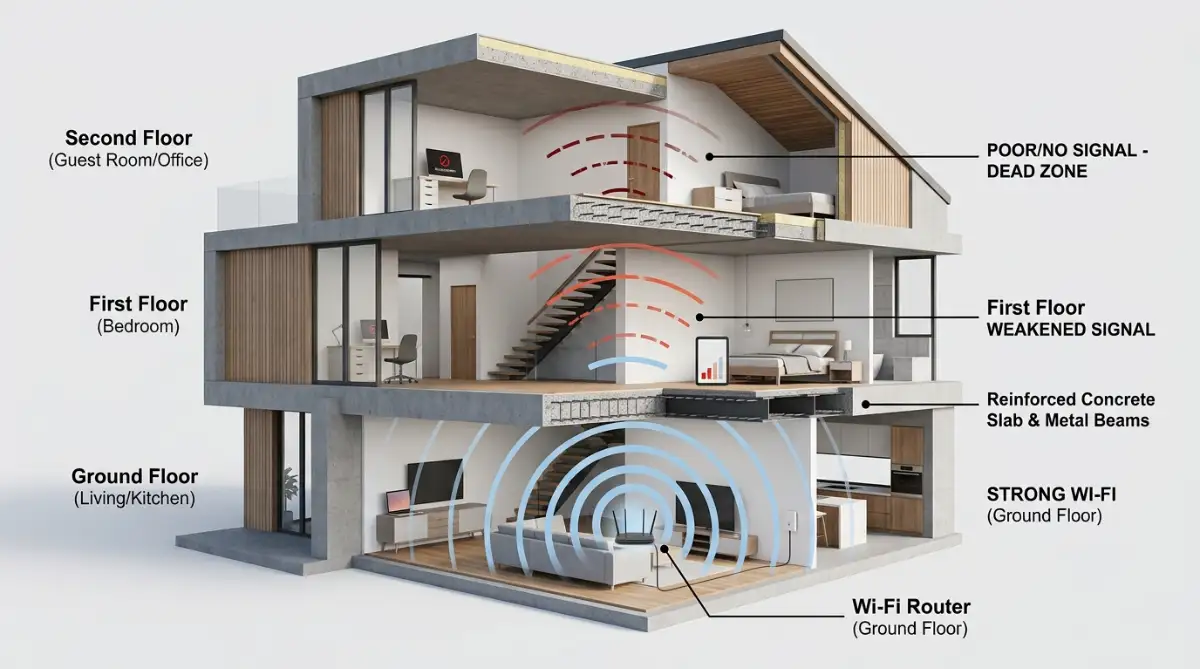
By the time the signal reaches your bedroom, it is often too weak to keep a smart device connected. This is why a smart plug on your top floor might work fine one minute and go offline the next.
Smart Home Wi-Fi: Myths vs. Reality
Most people put their main internet router in a corner on the ground floor near the wall outlet. This forces the wireless signal to travel both horizontally and vertically at the same time.
The further the signal has to travel at an angle, the more physical material it has to pass through. This diagonal path acts like a thick wall, completely blocking your smart home devices from getting a stable connection.
Finding the Perfect Spot for Your Network Hubs
The easiest way to improve your connection is by changing where you place your internet hardware. If your main router is hidden inside a cabinet or placed in a far corner, your smart devices will struggle.
You need to place your router in a central location to give the signal a fair chance.
Never place your main router on the floor or behind a heavy television set. Since wireless signals travel downward and outward, you should place your router as high as possible on the ground floor.
Putting your router on a tall shelf or mounting it on a wall helps the signal travel much further. This simple change can instantly reduce dead zones on the second floor of your house.
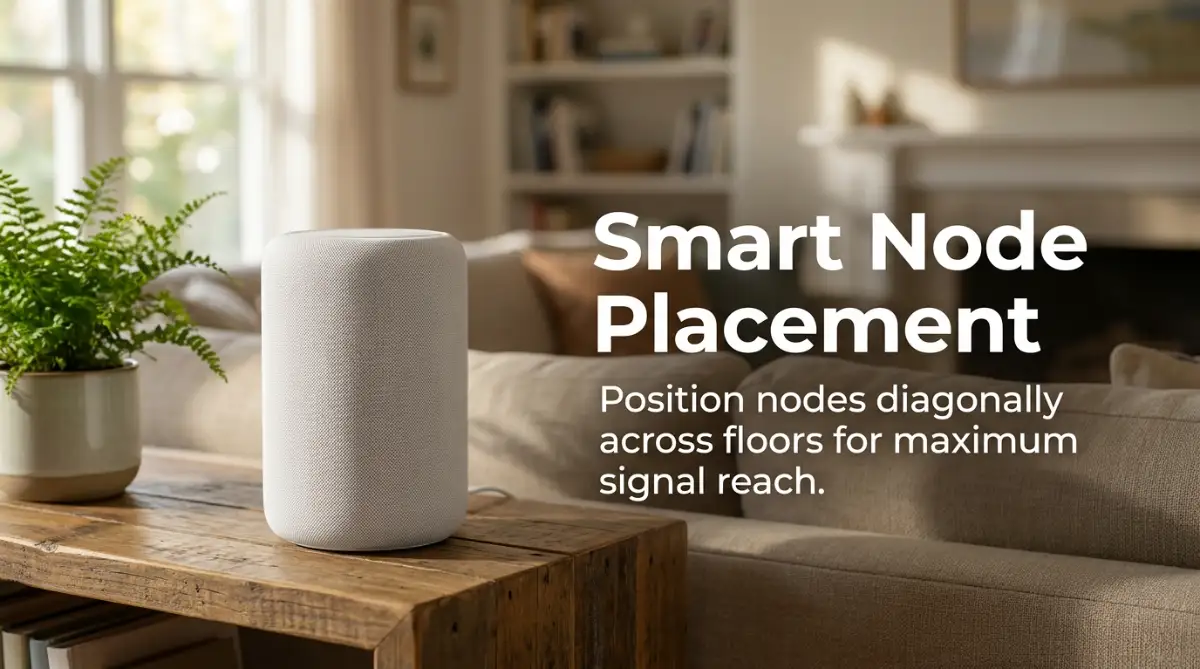
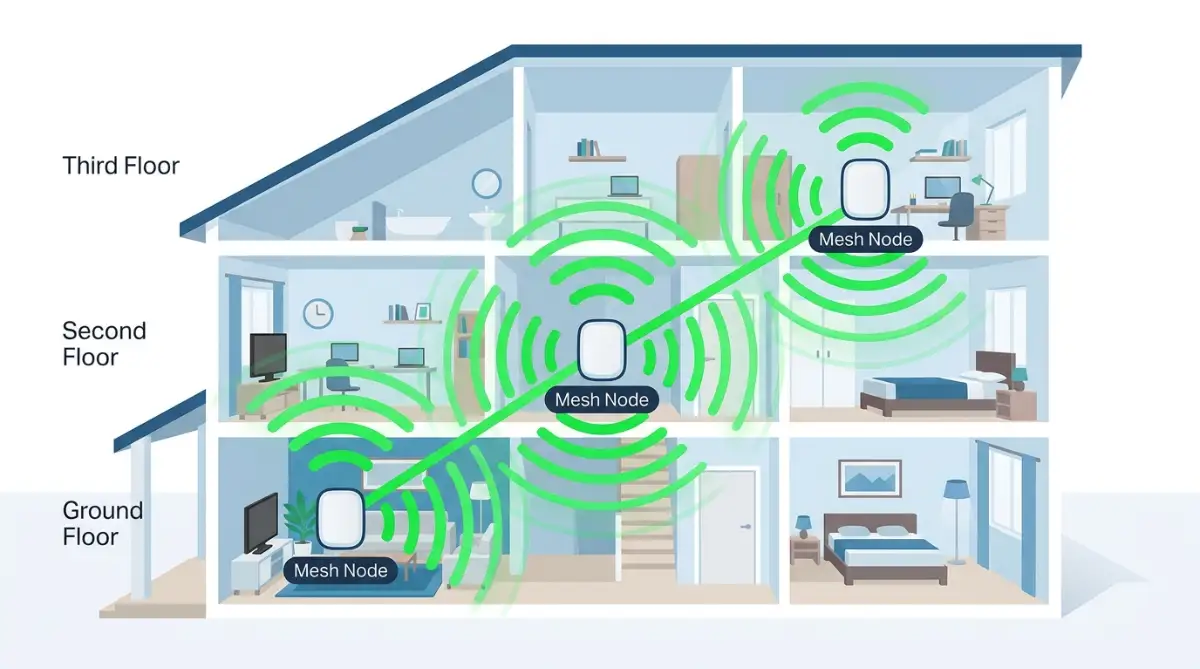
If you are using a mesh network system, do not stack your mesh nodes directly above each other on different floors. Stacking them vertically makes it hard for the nodes to talk to each other through the thick ceilings.
Instead, place your mesh nodes in a zigzag or diagonal pattern across the floors.
For example, if your main router is on the far left of the first floor, place the second node in the middle of the second floor. Then, place the third node on the far right of the third floor. This creates a clear path for the signal to jump from one node to another.
My Personal Setup Realization:
I used to keep my second mesh node directly above my main router on the second floor. My connection dropped constantly until I moved the second node ten feet to the right. That tiny change instantly stopped my smart cameras from going offline.
Managing Frequencies: Why Your Smart Bulbs Hate 5 GHz
Most modern internet routers send out two different wireless frequency bands: 2.4 GHz and 5 GHz. While the 5 GHz band is incredibly fast, it has a very short range and struggles to pass through solid walls.
The 2.4 GHz band is slower, but it can travel much further and pass through solid objects easily.
Almost every smart bulb, smart plug, and smart switch on the market runs exclusively on the 2.4 GHz band. Manufacturers use this band because it is cheap to build and offers the long-range coverage that smart devices need.
When your router combines both bands into a single network name, your smart devices can get confused. They will try to connect to the faster 5 GHz band, fail to hold the connection, and then drop offline completely.
To prevent this confusion, you should open your router settings and split your network into two distinct names. Name one network "MyHome_5G" and the other network "MyHome_2G".
Once split, connect all your phones, laptops, and streaming devices to the fast 5 GHz network. Then, connect all your smart home gadgets to the stable 2.4 GHz network. This keeps your smart devices on a dedicated, long-range highway.
How to Split Your Wi-Fi Bands (Quick Checklist)
- Find your router's login details: Check the sticker on the back of your router for an IP address (usually 192.168.0.1 or 192.168.1.1) and the admin password.
- Open your settings: Type that IP address into any web browser on your phone or computer and log in.
- Go to Wireless Settings: Look for a feature named "Smart Connect," "Band Steering," or "Single SSID." Turn this option Off.
- Rename your networks: Change the names (SSIDs) so you can tell them apart. For example, name one MyHome_2.4GHz and the other MyHome_5GHz.
- Connect your devices: Connect your heavy-usage devices (phones, TVs) to the 5GHz band, and link your smart home gadgets strictly to the stable 2.4GHz band.
If you want to see exactly how to access your router settings and change these bands step-by-step, watch this helpful video:
Dealing with IP Address Fights in a Large Smart Home
As you add more smart lights, plugs, and cameras, your router has to manage dozens of different connections. Every single device needs a unique digital address, known as an IP address, to talk to your router.
By default, routers use a system called DHCP to hand out temporary IP addresses to your devices. These temporary addresses are constantly changing, which can cause major problems for smart home hubs.
When a smart device goes to sleep to save power, it might lose its temporary IP address. When it wakes up, your router might have already given that same IP address to another device, like your phone.
This creates an IP address conflict, causing both devices to lose their internet connection. It is like two different houses having the exact same mailing address; the mail carrier simply gets confused and leaves.
To fix this, you can assign a permanent, static IP address to your most important smart home devices. You can easily do this by logging into your router's admin panel and looking for "Address Reservation" or "Static IP."
Assign a permanent IP address to your smart hubs, security cameras, and smart locks. This ensures your router always knows exactly where they are, preventing annoying connection drops.
Solving Wireless Channel Congestion in Crowded Areas
If you live close to your neighbors, their wireless networks might be screaming on the exact same channel as yours. This is especially true for the 2.4 GHz band, which only has three non-overlapping channels: 1, 6, and 11.
Most routers are set to "Auto" channel selection by default, which does not always work well. Your router might choose a crowded channel, causing your smart devices to get drowned out by your neighbor's Wi-Fi.
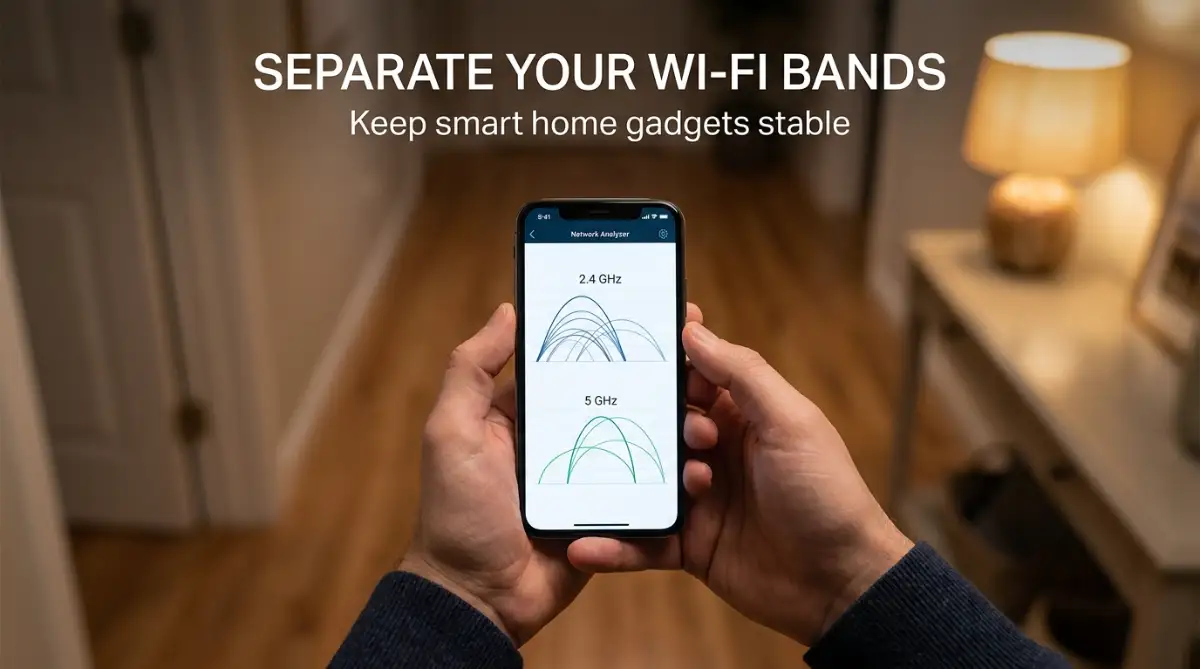
You can download a free Wi-Fi analyzer app on your phone to scan your local area. The app will show you which channels are being used heavily by the houses around you.
Look for the channel that has the fewest networks on it. Once you find the clearest channel among 1, 6, or 11, log into your router and manually select it.
When your router is on "Auto," it will constantly switch channels to avoid interference. Every time your router switches channels, your smart devices will momentarily lose connection.
By locking your router onto a single, clean channel, you provide a stable environment for your smart devices. They will no longer have to constantly reconnect to a moving target.
Upgrading Your Hardware: When a Standard Router Isn't Enough
Sometimes, the router provided by your internet company simply cannot handle a multi-story smart home. Those free routers are usually built with cheap internal antennas that cannot support more than fifteen or twenty devices.
If you have over thirty smart devices spread across three floors, you need to upgrade your hardware.
A mesh Wi-Fi system uses a main router and several smaller helper nodes placed around your house. Unlike traditional range extenders, mesh nodes all share the exact same network name and password.
As you walk through your house, your devices seamlessly switch to the closest node without losing connection. This is the absolute best solution for large, multi-story smart homes.
If you decide to buy a mesh system, look for a tri-band model rather than a dual-band model. Tri-band systems have an extra, dedicated 5 GHz highway that the nodes use to talk only to each other.
This leaves the other two bands completely free for your smart devices, laptops, and streaming systems. It ensures your main internet speeds remain incredibly fast, even on the top floor of your house.
Advanced Strategies for Solid Multi-Floor Wi-Fi
Now that you understand the basics of router placement, we can discuss advanced ways to make your connection much stronger. These expert methods will help you keep your smart home running smoothly across all floors. By setting up your network properly, you can prevent future connection drops before they even start.
The Power of a Wired Connection for Mesh Nodes
Many people buy a mesh system and rely completely on wireless signals to connect the nodes together. While this is easy, it uses up a large portion of your wireless bandwidth just for the nodes to talk to each other.
To get the absolute best performance, you should connect your mesh nodes using physical Ethernet cables. This method is called wired backhaul, and it keeps your wireless bands completely free for your smart devices.
When you use wired backhaul, the signal travels through the physical cable without losing any speed or strength. This means the node on your top floor will perform just as fast as the main router downstairs.
According to the official guides from the Federal Communications Commission (FCC), using physical connections is the most reliable way to stop signal interference in a crowded house. It completely removes the physical barriers of thick ceilings and heavy wooden floors.
Running cables through a multi-story house can seem difficult, but there are simple ways to do it. You can use flat, white Ethernet cables that easily tuck under baseboards or carpet edges.
Alternatively, you can use powerline adapters, which send internet signals through your home's existing electrical wiring. This gives you the benefit of a wired connection without the need to drill holes in your walls.
Fine-Tuning Your Router's Signal Power
Most people assume that setting their router's signal strength to the highest option is always the best choice. However, in a multi-story home, too much signal power can actually cause major connection problems.
When your nodes scream at maximum volume, your smart devices might get confused about which node they should connect to. This issue is called the sticky client problem, where a device stays locked to a far-away router.
Imagine trying to have a quiet conversation with someone while multiple people are shouting through megaphones in the same room. Your smart plug on the second floor might try to stay connected to the weak signal of the first-floor router.
It does this because the first-floor router is shouting so loudly that the plug cannot hear the closer second-floor node. This causes slow speeds, lag, and sudden connection drops.
To fix this, log into your router settings and try reducing the transmit power of your 2.4 GHz band to medium. This encourages your smart devices to let go of far-away signals and connect to the nearest node.
Keeping your signals balanced ensures that your smart home gadgets transition smoothly from one network hub to another. It creates a seamless web of coverage that naturally guides your devices to the best possible connection.
Setting Up a Dedicated Smart Home Network
If you want a highly stable network, you should keep your smart devices completely separate from your main computers and phones. Most modern routers allow you to create a secondary guest network with its own unique password.
This is a great security and stability practice that separates your heavy internet users from your quiet smart devices.
When your family members stream high-definition movies or play online video games, they use up a massive amount of network bandwidth. This heavy traffic can easily crowd out the tiny data packets sent by your smart light bulbs or smart thermostat.
By placing all your smart devices on a dedicated guest network, you give them their own quiet lane to drive on.
This separation also makes your entire home much more secure from external threats. If a hacker somehow finds a security gap in a cheap smart bulb, they will not be able to access your personal computer or bank details.
Industry standards supported by organizations like the IEEE suggest separating IoT devices to maintain both network safety and general operational performance. It is a simple setup step that pays off in both security and speed.
Critical Network Mistakes You Must Stay Away From
When trying to fix a weak wireless network, it is very easy to make errors that actually make the problem worse. Many homeowners spend hundreds of dollars on fancy upgrades without understanding the true cause of their issues.
Avoiding these common pitfalls will save you a lot of time, money, and unnecessary stress.
Stacking Nodes in a Straight Line
The most common mistake people make is placing their mesh nodes in a straight vertical line, one directly above the other. They put one node in the living room, one in the bedroom directly above it, and another in the attic.
This creates a weak daisy-chain where each node gets a worse signal than the last one.
If the second node only gets a fifty percent signal from the main router, the third node will perform even worse. By the time the signal reaches your attic, it will be incredibly slow and highly unstable.
You must think of your signal flow as a web rather than a single straight line. Zigzagging your nodes across the house ensures that each node has multiple strong paths to share data.
Overlooking the Physical Makeup of Your Walls
Before you spend money on expensive network gear, you need to understand what is inside your walls. Heavy metal beams, thick concrete, and even large mirrors can completely block wireless signals.
Trying to force a wireless signal through these materials is like trying to shine a flashlight through a solid wooden door.
Understanding how signal waves interact with concrete and drywall is just as important as knowing how to spot house-wrecking structural flaws at an open house when you buy a home.
If your second floor has thick concrete floors, a standard wireless signal will never pass through them successfully. In these cases, no amount of expensive router upgrades will solve the problem without physical cables.
Throwing Money at Speed Upgrades Instead of Fixing Signal Flow
When internet connections drop, many people immediately call their internet service provider to buy a more expensive monthly plan. They assume that paying for higher speeds will automatically fix their disconnecting smart plugs.
However, bandwidth speed has absolutely nothing to do with signal range and physical interference.
If you have a fast internet plan but your router cannot reach the third floor, your devices will still drop offline. Buying a higher-speed plan is like putting a faster engine in a car that has no wheels; it simply will not go anywhere.
When emergency network failures happen, people often panic and search for quick financial options like no credit check loans to get approved fast to replace expensive gear.
However, most connection drops can be fixed without spending a single penny on new hardware. You just need to configure your current router correctly and place it in the right spot.
Leaving Your Devices Unsecured and Unpatched
Another major mistake is ignoring security updates for your wireless router and smart home hubs. Manufacturers regularly release software updates to fix known bugs, improve signal stability, and patch security holes.
If you do not update your devices, they will eventually experience software glitches that cause them to disconnect.
Take ten minutes every few months to log into your router's admin panel and check for firmware updates. This simple habit keeps your network running fast, secure, and completely free of annoying bugs.
Your Roadmap to a Lag-Free Smart Home Network
Building a stable multi-story network does not have to be an overwhelming task. By taking systematic, small steps, you can easily turn your unstable connection into a highly reliable system.
Let us look at a simple, practical action plan you can start using today.
Step-by-Step Weekend Action Plan
To make your troubleshooting journey easy, here is a quick list of things you can do this weekend:
- Map your dead zones: Walk through each floor of your house with your smartphone and note where the Wi-Fi signal drops.
- Move the main router: Get your router out of the corner, elevate it on a shelf, and place it in the center of the ground floor.
- Separate your bands: Log into your router's setup page and create separate names for your 2.4 GHz and 5 GHz networks.
- Reposition mesh nodes: Move your helper nodes into a diagonal zigzag pattern across your different floors.
- Assign static IPs: Give your most important smart home hubs permanent digital addresses so they never get lost.
Protecting Your Household and Digital Assets
Keeping your smart devices secure and properly connected is part of managing your household responsibly. When your cameras and door locks are offline, your physical home is left completely unprotected.
Protecting your home and digital data is a key step in securing your estate, much like knowing what actually happens to your assets if you die without a legal will.
By taking the time to set up your home network correctly, you protect both your physical property and your peace of mind. A stable network means your security cameras will always record, and your smart alarms will always notify you of trouble.
You can sleep soundly knowing that your home is fully protected by a strong, unbreakable digital shield.
With just a few smart adjustments, my own multi-story house went from a frustrating tech nightmare to a highly stable environment. I no longer have to worry about offline bulbs or silent speakers when I walk up the stairs.
You can achieve the exact same peaceful setup in your own home by applying these easy steps starting today.
Common Questions About Fixing Home Wi-Fi Drops
Why does my smart bulb disconnect when I turn on other appliances?
Many common household appliances, like microwaves and baby monitors, run on the exact same 2.4 GHz frequency as your smart bulbs. When these appliances are running, they can create heavy radio noise that temporarily drowns out your Wi-Fi signal. To fix this, try moving your router further away from your kitchen appliances, or change your router's wireless channel to 1, 6, or 11.
How many mesh nodes do I actually need for a three-story house?
As a general rule, you should have at least one mesh node for every floor of a multi-story home. This ensures that the signal does not have to travel through multiple thick ceilings to reach your devices. If your home has a lot of concrete walls, you might need an extra node to help the signal wrap around those heavy barriers.
Will upgrading to a Wi-Fi 6 or Wi-Fi 7 router fix my smart home drops?
Upgrading your router can help if your current hardware is old and cannot handle the number of devices you own. Modern standards certified by the Wi-Fi Alliance are built to manage dozens of smart home gadgets much better than older systems. However, if your router is placed in a bad spot behind concrete walls, even a new router will struggle without proper placement.
Can I use a cheap Wi-Fi extender instead of a mesh system?
Standard range extenders are usually not recommended for smart homes because they create a secondary network name. This forces your smart devices to constantly switch back and forth between the router and the extender, which causes frequent connection drops. A true mesh system is much better because all nodes share a single network name, allowing devices to transition smoothly.
This article is for informational purposes only. Network configurations, smart home setups, and hardware performance can vary depending on your specific home construction, local internet service provider, and device models. Always refer to your specific manufacturer guidelines and manuals before modifying advanced router settings or electrical wiring.
![7 Hidden Signs Your Laptop is Overheating [Avoid These Mistakes]](https://vimex24.com/storage/uploads/blogs/1786454129_7-hidden-signs-your-laptop-is-overheating-avoid-these-mistakes.webp)
![5 Shocking Truths About Megapixels [The Camera Trap Exposed]](https://vimex24.com/storage/uploads/blogs/1785554339_5-shocking-truths-about-megapixels-the-camera-trap-exposed.webp)