The Crushing Weight of a Cluttered Digital Screen
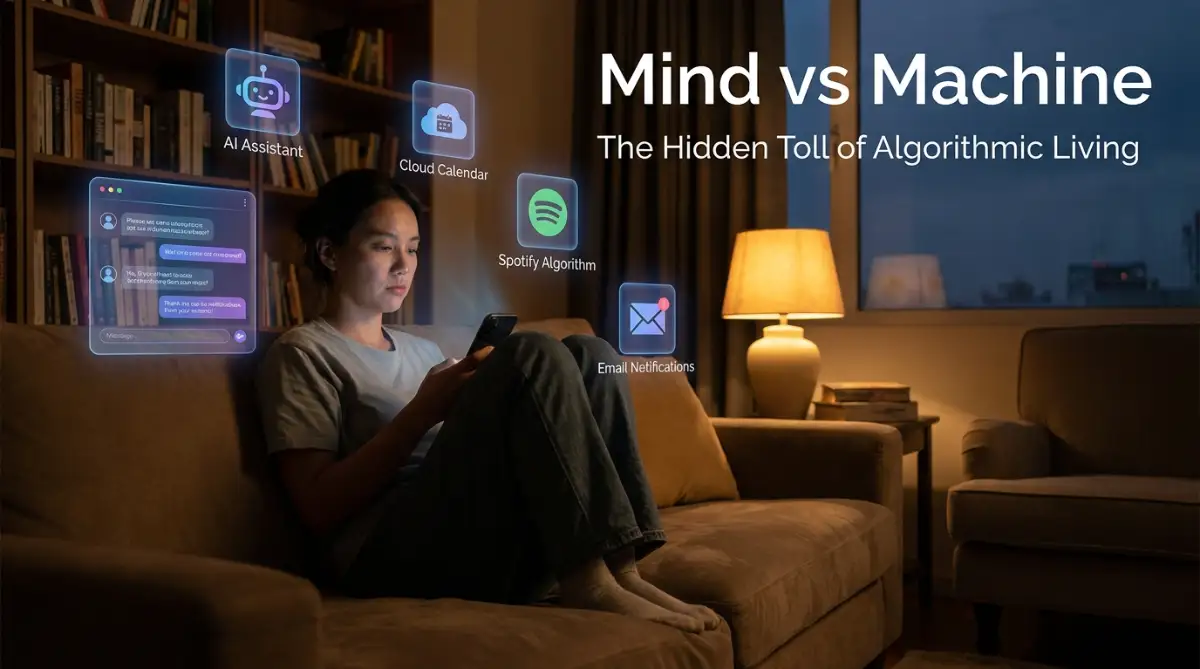
Open your laptop. Ping. Ping. Ping. Before you even take a sip of your morning coffee, your screen looks like a messy spiderweb of colored tags and overdue notifications. If your team's project management tool gives you a mini panic attack every day, you are definitely not alone. Let’s clean up that digital mess right now, so you can actually get your work done without losing your mind.
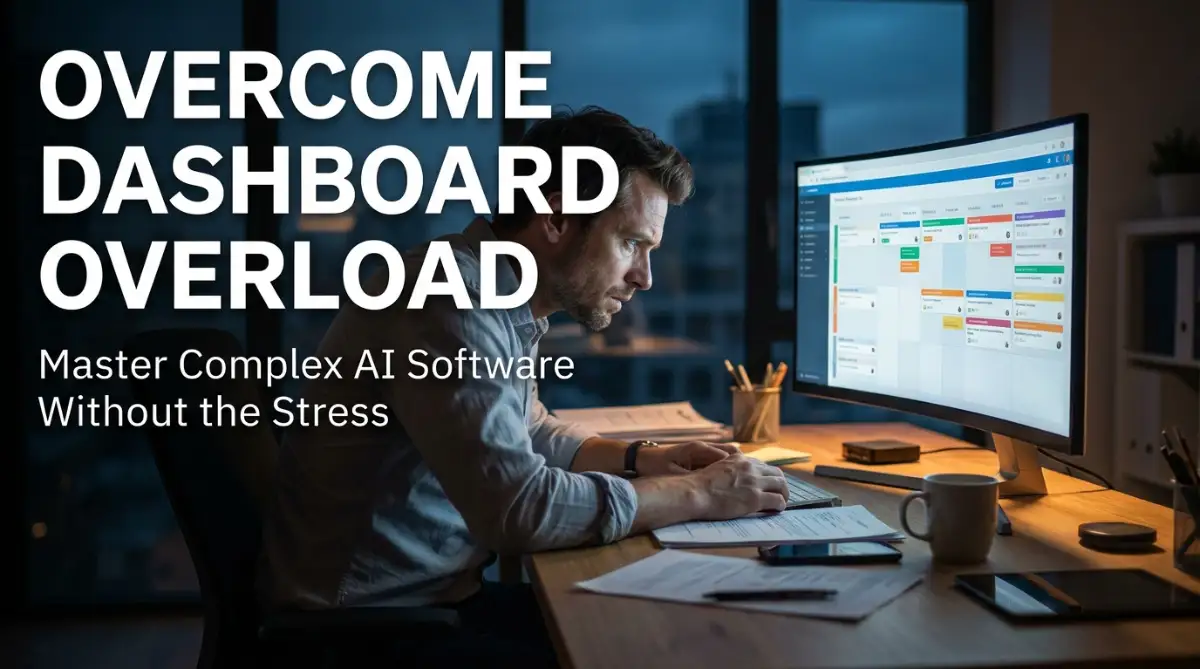
This is the hidden reality that millions of hard-working professionals face every single morning. You sit down with a hot cup of coffee, ready to tackle the day, but your software instantly drains your energy. The tools that are supposed to make our jobs easier often feel like a complicated maze built to confuse us. You spend more time trying to figure out how to update a simple task than you actually spend doing the task itself.
This daily struggle creates a deep, exhausting sense of anxiety. You start doubting your own skills and worrying that your manager thinks you are falling behind. Every time an email arrives announcing a new AI feature or a software update, a quiet wave of panic washes over you. You are not alone in this feeling, and it has absolutely nothing to do with your intelligence.
These modern workspaces are built by engineers for engineers. They pack every possible feature onto one single screen, expecting normal users to magically understand it all. The constant visual noise makes it incredibly hard to focus, stealing your peace of mind and leaving you mentally exhausted by lunch. But there is a way out of this trap.
Did you know? Most average users only ever need about 10% of the features available on their screen. The rest is just digital noise.
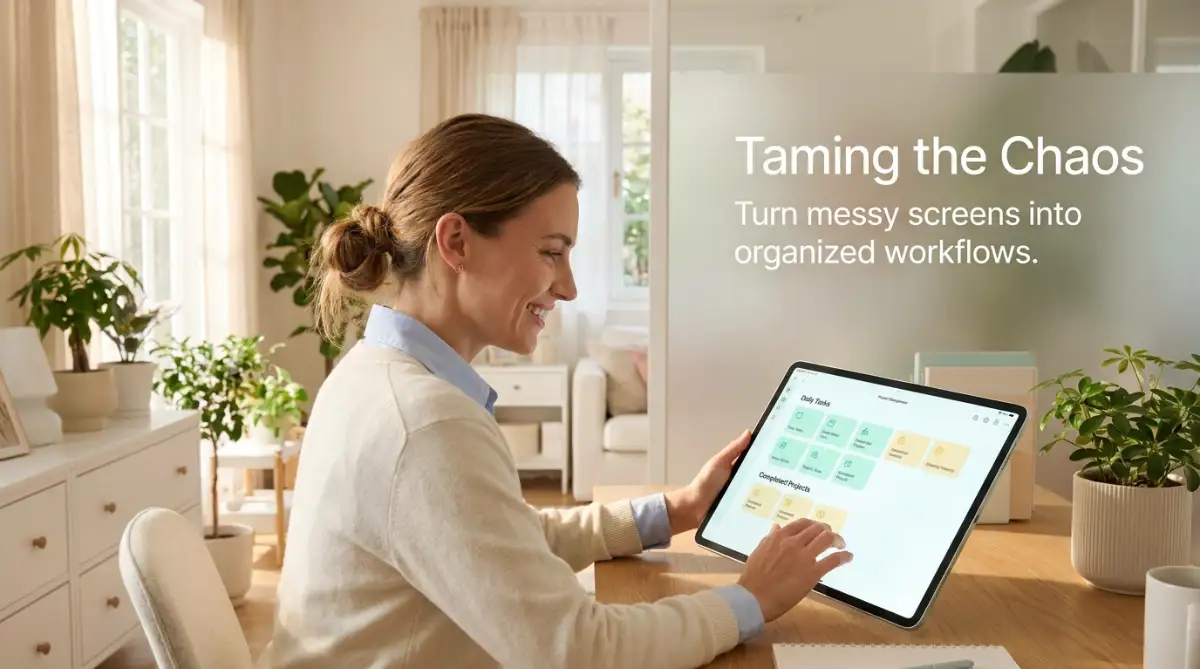
You do not need to become a tech wizard to take back control of your morning routine. We are going to break down exactly how you can silence the noise, hide the useless buttons, and build a calm workspace.
What You Will Fix Today:
- How to find your "Safe Zone" and ignore the rest of your company's messy dashboards.
- The exact buttons to press to stop annoying notification pings.
- Why keeping your project app off your personal phone is the smartest choice you can make.
- A simple 5-minute Friday habit that keeps your screen completely organized for Monday.
Taming the Digital Beast: Making Sense of the Chaos
The absolute biggest mistake you can make is trying to understand the whole system on your first day. Think of these massive software platforms like a commercial airplane cockpit. If you walked into a cockpit, you would see thousands of glowing switches and dials.
Would you try to press every single button to see what it does? Of course not. You would only look for the specific controls you need to fly safely.
Your new work software is exactly the same. You are trying to read every widget, every activity feed, and every timeline at once. This creates an immediate sensory overload that shuts down your brain.
To fix this, we need to change how you look at your screen. We must start treating the software as a personal assistant rather than a terrifying boss.
Finding Your Daily Safe Zone
Your first mission is to find or create your personal "Safe Zone" within the tool. Almost every major platform has a specific section called "My Tasks", "Home", or "My Work". This is your sanctuary.
You need to completely ignore the grand company roadmaps and the massive team boards. When you log in, go straight to your personal task list. Bookmark this exact page in your web browser.
By bookmarking this specific view, you bypass the messy homepage entirely. You start your day looking only at what you personally need to do.
A Quick Reality Check: Many people feel guilty if they do not check the main project boards. Stop that immediately. Your only job is to manage your assigned work efficiently, not to memorize the entire company database.
The Art of Hiding Things You Do Not Need
The most powerful button in any software is the "Hide" or "Collapse" button. Most people never use it. They leave the left-hand sidebar wide open, showing 50 different folders they will never click.
Spend ten minutes today closing menus you do not use. Collapse the sidebars. Hide the activity feeds that show every time someone leaves a comment on a project you do not care about.
Pro Tip: I spent my first two months at a new job staring at a dashboard filled with financial metrics I didn't even understand, just because I was too scared to delete the widget. Once I finally realized I could just click the "X" and remove it from my view, my daily anxiety dropped instantly. My screen became mine again.
By cleaning up your view, you give your brain space to breathe. White space on a digital screen is just as important as a clean physical desk.
How to Silence the Constant Alarms
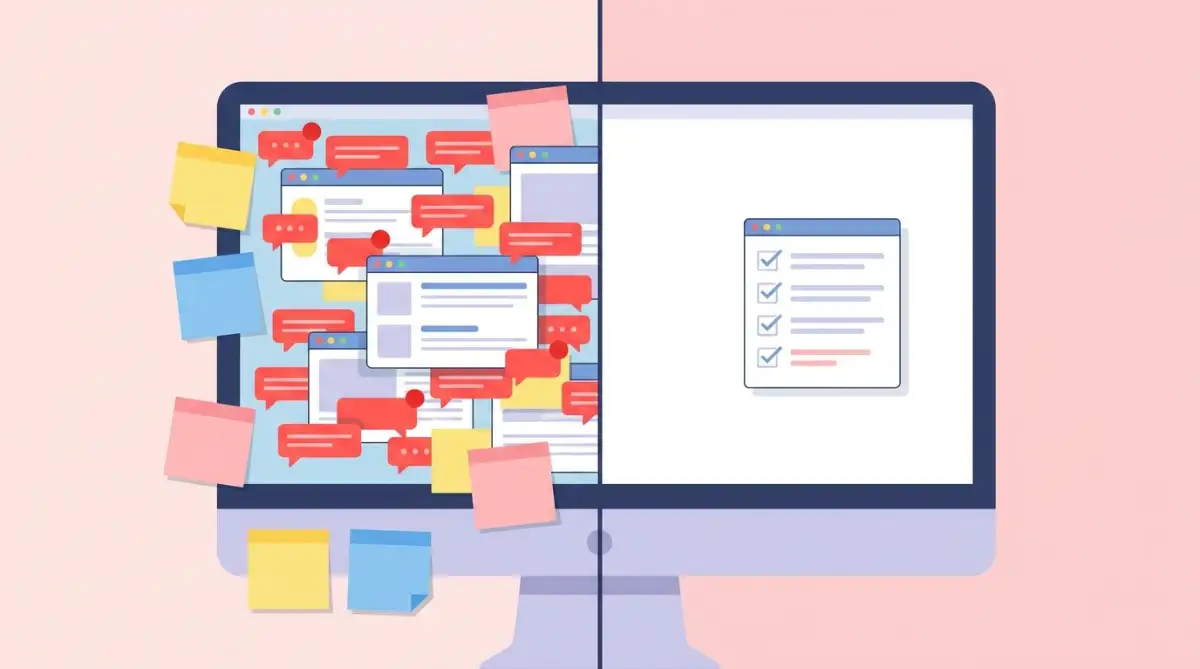
Notification fatigue is a very real, very damaging problem. Every time someone tags you, changes a due date, or uploads a file, a little red dot appears. Sometimes, a loud pinging sound interrupts your thoughts.
This completely destroys your deep focus. Your brain is wired to pay attention to sudden changes, so you instantly lose your train of thought.
You must take control of your notification settings right now. Go into your profile preferences and turn off email notifications for minor updates.
Your Video Guide to Better Focus
If you want to see exactly how the pros click through these settings and instantly clean up their messy screens, you need to watch this quick walkthrough. This simple five-minute video will show you the exact buttons to press to stop the constant pinging and finally get some peace.
Change your alerts so you only get notified when someone directly mentions your name. Everything else can wait until you are ready to look at it.
Myth vs. Fact: Workplace Notifications
- Myth: Turning off notifications means I will miss important updates and my boss will be mad.
- Fact: Most updates are just background noise. By setting alerts only for direct mentions (like @yourname), you actually reply faster to the things that truly matter. Your boss cares about results, not how fast you click a pop-up.
Breaking Down the Myth of AI Magic
Right now, every single company is adding Artificial Intelligence to their platforms. They promise that AI will automatically organize your life and do your work for you.
The truth is often much messier. Sometimes, the AI tries to guess what you want to see and ends up completely changing your dashboard layout overnight. This causes massive panic for beginners.
If the AI features are confusing you, just ignore them for now. You do not have to use the smart summary buttons or the automated task creators.
Stick to the absolute basics. Manually type your updates. Manually move your cards.
Once you build muscle memory for the basic movements, then you can start playing with the shiny new toys. Do not let the pressure to use AI stop you from learning the foundation.
A Quick Comparison: The Hard Way vs. The Smart Way
Let’s look at a simple breakdown of how people usually handle new software compared to what you should actually do.
As you can see from the table above, the smart way is all about removing friction. You are actively building a protective wall between yourself and the rest of the company's data.
Building Muscle Memory Through Repetition
Learning a new digital layout is exactly like learning to drive a car. On your very first driving lesson, you had to actively think about the pedals, the mirrors, and the steering wheel all at the same time. It was exhausting.
But after a few months, your hands and feet just knew what to do. You built muscle memory.
Your work software requires the exact same process. You need to perform the same small actions over and over again until your brain stops thinking about them.
Pick one single action to master this week. Maybe it is just learning how to change a due date.
Do not worry about anything else. Just practice changing due dates until you can do it with your eyes closed. Next week, pick a new action, like attaching a file to a card.
Real Talk: Do I really need to learn keyboard shortcuts?
Absolutely. Let me give you a quick example. Let's say you use Asana or Jira. Every time you move your mouse to click "Assign to me," you waste about 3 seconds. Doing that 20 times a day equals a lot of wasted time. Hitting the "M" key on your keyboard does it instantly. Small wins build up fast!
The Rule of Three Clicks
A great rule of thumb to keep in mind is the "Three Clicks" rule. If it takes you more than three clicks to find your daily work, your setup is too complicated.
You need to use filters to pull your work to the surface. Most platforms have a powerful filter button usually hidden near the top right of the screen.
Set a filter that says: "Show me tasks assigned to ME, due THIS WEEK". Save this filter.
Now, instead of hunting through massive lists, your screen only shows what is urgent and relevant. This simple trick alone will save you hours of frustration every single month.
Asking for Help Without Feeling Silly
Many people sit in silence because they are too embarrassed to ask a younger colleague for help. They think they should already know how to use these tools.
Please remember that these platforms update their designs constantly. Even the experts get confused when buttons suddenly move to the other side of the screen.
Reach out to the most organized person on your team. Ask them for a quick ten-minute screen share.
Do not ask them to explain the whole software. Simply say, "Can you show me how you set up your personal view? I want to make mine cleaner."
People love showing off their organizational hacks. They will gladly share their shortcuts with you, and you will learn practical tricks that are not in any training manual.
Organizing Your Digital Desk Like a Physical One
Imagine walking into an office where papers are thrown everywhere, sticky notes cover the monitor, and three different phones are ringing. You would turn around and walk out.
Your digital workspace is currently that messy office. We need to clean it up step by step.
Start by clearing out old tasks. If a project is done, archive it. Get it off your screen.
Use color tags sparingly. If everything is marked as "High Priority" in bright red, then nothing is actually high priority.
Choose a simple color system. Blue for routine work, yellow for things you are waiting on, and red only for true emergencies. This makes scanning your screen much easier on the eyes.
When Software Updates Ruin Everything
Just when you finally get comfortable, the software company pushes a massive update. The menus look different, the icons change, and your saved filters disappear.
It is completely normal to feel a sudden wave of anger when this happens. Take a deep breath and do not panic.
Software companies almost always provide a "Switch to classic view" button for the first few months after a big update. Look for it in the settings.
If you cannot switch back, just go back to your basics. Find your personal tasks page first. Rebuild your "Safe Zone" before you try to figure out anything else.
The Power of Single-Tasking
These complex dashboards encourage bad habits like multitasking. Because you can see ten different projects at once, you feel the need to jump between them constantly.
This destroys your productivity and drains your mental energy fast. You must actively fight the urge to click around.
When you open a specific task card, make it full screen. Block out the rest of the dashboard.
Read the description, do the required work, write your update, and close it. Only then should you look at your list again to pick the next item.
Treat each digital task exactly like a physical piece of paper.
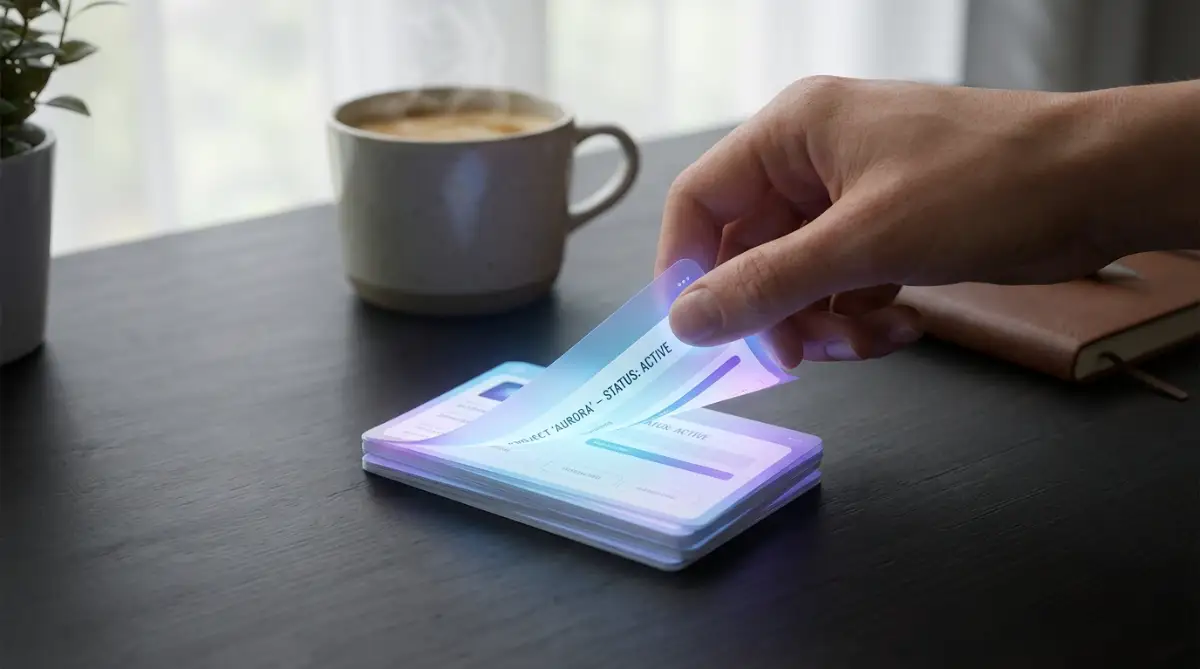
You only handle one piece of paper at a time.
By applying these simple, practical rules, you slowly take all the power away from the software. It stops being a terrifying beast and finally becomes what it was always meant to be: a simple tool to help you get your work done.
Mastering Your Workspace Like a Senior Expert
Once you have finally built your safe zone and silenced the annoying notifications, you are ready to level up. You have survived the initial shock of the software, and now it is time to make the platform work for you. Most normal users just do the bare minimum to get by every day.
But if you want to completely remove your daily anxiety, you need to learn a few advanced tricks. These are the hidden habits that senior project managers use to leave the office right on time. They do not work harder than you do; they simply use their digital tools much more efficiently.
The Magic of Reusable Work Templates
Think about how many times you do the exact same type of task every single week. Maybe you write a weekly progress report, or perhaps you process a standard client request. Typing out the same details over and over again is a massive waste of your energy.
Almost all modern work platforms allow you to create task templates. You can pre-fill the description, add a standard checklist, and automatically assign the right people.
Next time you get a standard request, you just click your template button once. The entire task populates instantly, saving you ten minutes of boring typing.
If you do this for five different tasks a day, you easily save yourself an hour of frustrating admin work every single week. It is a completely free way to buy back your personal time.
Keyboard Shortcuts That Save Hours
When I first started managing digital projects, I used my mouse for absolutely everything. I would manually drag my cursor to the top menu, click a dropdown, and search for a specific tag.
Then a senior colleague showed me the power of keyboard shortcuts. Almost every popular platform uses the forward slash key ("/") to open a magic command menu.
If you press that one key, a small search box instantly appears right where you are typing. You can instantly change a due date, assign a teammate, or attach a file without ever touching your mouse.
At first, memorizing these shortcuts feels a bit awkward. But within a few days, your fingers will fly across the keyboard, making you feel incredibly confident and in control.
Setting Up Personal Rules and Automation
You do not need to be a software engineer to use simple task automation. Most platforms have a basic "If This, Then That" feature built right into the settings.
For example, you can set a rule that says: "If I mark a task as DONE, automatically move it to the Archive folder." This simple rule instantly removes clutter from your screen without you having to drag anything.
You can also set a personal rule to automatically notify your manager when a high-priority item is finished. This completely removes the need for you to write a separate follow-up email.
By setting up these tiny automated helpers, you protect your mental energy. You are building a system that quietly cleans up after you while you focus on your real job.
Navigating AI and Team Dynamics Safely
We are seeing a massive shift in how software monitors our daily activities. Some of these new tools try to predict your mood or measure your productivity based on how fast you click.
It actually reminds me of how AI actually reads your true emotions during video calls, which can feel incredibly invasive. You have the right to keep your work boundaries clearly defined.
Do not feel pressured to use every single smart tracking feature your company turns on. Focus heavily on clear, honest communication with your team instead of relying entirely on automated status updates.
Real human empathy will always solve a confusing project delay much faster than a generic software notification ever will.
Developing a Strict Naming Convention
Have you ever searched for a specific file, but you could not find it because someone named it "Final_Draft_Version_2"? This happens every single day in messy corporate environments.
You must protect your future self by naming your tasks and files clearly today. Stop using vague titles like "Update the thing" or "Client meeting notes".
Start using a strict formula, such as: [Client Name] - [Specific Action Item] - [Date].
When your entire team follows these simple enterprise software usability standards, searching for old work becomes incredibly easy. You will never lose a document in the digital void again.
The Five-Minute Friday Purge
The absolute best habit I ever built was my Friday afternoon dashboard purge. Every Friday at 4:50 PM, I stop doing any real work and I just clean my screen.
I archive all the tasks I finished that week and reschedule anything that slipped behind. I clear out my entire notification inbox so it is completely empty.
By doing this, I do not think about my software at all over the weekend. When Monday morning rolls around, I open my laptop to a beautifully clean, organized list.
The Hidden Traps That Will Destroy Your Progress
Even after you learn the basics, it is incredibly easy to slip back into bad digital habits. When things get busy, panic sets in, and we forget all the good systems we just built.
I have watched incredibly smart professionals completely break down because they accidentally created a digital monster. They tried to be too organized, and it completely backfired on them.
You need to know exactly what these traps look like so you can avoid falling into them. If you ignore these warnings, your software will quickly become your worst enemy again.
The "Everything is Urgent" Disaster
One of the biggest mistakes people make is abusing the priority tags. When you feel stressed, you tend to mark every single task with a bright red "Urgent" or "High Priority" label.
You think this will help you focus, but it does the exact opposite. When your entire screen is glowing red with warnings, your brain goes into full panic mode.
If everything is an emergency, then absolutely nothing is an emergency. You lose the ability to actually judge what needs to be done first.
You must be ruthless with your priority tags. Only use the red label for things that will literally cause a massive problem if they are not finished today.
The Silent Danger of Ghost Tasks
Ghost tasks are those tiny little assignments you keep pushing back week after week. You know you should just do it, but you keep changing the due date to "next Monday".
These tasks sit in your personal view, silently staring at you every single morning. They drain your motivation before you even drink your coffee.
If a task has been delayed three times, you need to make a hard decision. Either do it right now, delegate it to someone else, or bravely delete it completely.
Over-Connecting Your Apps (The Frankenstein System)
Many modern platforms encourage you to integrate every other app you use into one giant dashboard. You can connect your email, your calendar, your chat app, and your file storage.
People think this will make them faster, but it usually creates a messy, confusing Frankenstein monster. Suddenly, a single message in your chat app creates three different tasks on your board.
Research into the hidden costs of digital clutter clearly shows that having too many connected notifications completely destroys your ability to do deep work.
Keep your tools separate whenever possible. Let your email be your email, and let your project tool just handle your projects.
Why Putting the App on Your Phone is a Trap
On your first day, your manager might cheerfully suggest that you download the mobile version of your project software. Do not do this unless your job specifically requires you to be on call.
Putting that massive system on your personal phone completely destroys your work-life balance. You will find yourself checking project updates while you are eating dinner with your family.
A sudden notification about a missed deadline at 9 PM on a Tuesday will instantly ruin your sleep. The constant access to work creates a heavy psychological impact of workplace stress that you cannot easily escape.
Protect your personal device fiercely. If you must have the app on your phone, you absolutely must turn off all push notifications for it.
Giving Assignments Without Any Context
We are all guilty of rushing through our day and creating tasks for our teammates with zero explanation. You might assign a card to a coworker that just says, "Please review this document."
This is incredibly disrespectful to their time. They now have to hunt you down, send you a message, and ask what exactly they are supposed to be looking for.
You should always assume the other person knows absolutely nothing about the project. Write a clear, two-sentence explanation in the description box and explicitly state what a successful outcome looks like.
Taking an extra sixty seconds to provide clear context helps how remote teams can collaborate effectively without constant, frustrating interruptions.
Treating Your Dashboard Like a Storage Drive
Your project management tool is designed to track moving actions, not to permanently store company files. Many beginners make the mistake of uploading massive video files and master spreadsheets directly into the task cards.
Over time, this slows down the software and makes finding old files nearly impossible. Your task board should only hold links, not heavy raw files.
Always store your actual documents in a proper cloud storage system with strict security rules. Think of this habit just like proven cybersecurity protocols for remote workers, where keeping sensitive data organized and secure is your top priority.
Simply paste the secure link to the file inside your task description. This keeps your daily workspace lightning fast and completely organized.
Your Fresh Start for a Peaceful Workday
Learning how to bend complex software to your will is one of the most empowering things you can do for your career. You do not have to be a tech genius or a coding expert to feel comfortable at your desk.
It is completely okay to feel overwhelmed when a screen full of flashing charts is thrown in your face. The secret is simply refusing to play the game on their confusing terms.
You have the power to collapse those massive menus, mute the loud notifications, and hide the features you do not need. You are slowly building a protective shield around your daily focus.
Always remember that the software was purchased by your company to serve you, not the other way around. If a specific view or a new AI feature is making your job harder, you have the absolute right to turn it off and stick to your basic lists.
By taking just ten minutes every morning to organize your personal safe zone, you will instantly lower your daily stress. You will stop missing deadlines, and you will finally leave the office feeling proud of what you accomplished.
Having these boundaries in place is an amazing safety net for your mental health. It works exactly like how uninsured motorist coverage saves you from unexpected disasters—you hope you never need it, but the protection brings you massive peace of mind.
I know exactly how frustrating those messy screens can be, because I used to let them ruin my weekends. But I promise you, taking just a few minutes tomorrow morning to hide the digital noise will instantly make you feel lighter, happier, and totally in control of your career.
Frequently Asked Questions About Dashboard Management
How long does it usually take to learn a new complex project tool?
For most average users, it takes about two to three weeks of daily use to feel truly comfortable. Do not expect to master it on day one. Just focus on learning one small feature at a time, like updating your own task status.
Should I use the built-in AI features right away?
No, it is usually much better to ignore the AI features when you are a complete beginner. Learn how to manually move your tasks and write your updates first. Once you understand the basic flow, then you can let the AI automate the boring steps.
What do I do if my manager expects me to use a complicated view?
Simply ask your manager if you can maintain your own personal list view as long as your daily work gets done on time. Most leaders only care about the final results, not how your personal screen is formatted. You can always switch to their preferred view just for team meetings.
Why does my software run so slowly sometimes?
This usually happens when you leave too many browser tabs open or your dashboard is filled with unarchived, dead projects. Make it a habit to close old tabs and archive finished work every single Friday. A clean digital workspace runs significantly faster than a messy one.
Is it normal to feel anxious when logging into work software?
Yes, it is completely normal and incredibly common. This specific type of software anxiety happens because the platform overloads your brain with too much visual information at once. Using the filtering and hiding tricks we discussed will quickly stop that panicked feeling.
Disclaimer: The information provided in this article is for educational and informational purposes only. We are not responsible for how you choose to configure your workplace software or any potential loss of data. Always consult with your company's IT department or management team before changing major system settings, installing third-party integrations, or modifying company-wide dashboards.